Working with Criteria
Last updated: October 22, 2026
How Scopes Work
Scopes define custom groupings of spend using metadata-based criteria. These groupings behave like logical "sub-accounts" for reporting, budgeting, and enforcement purposes.
Scopes do not replace accounts. Instead, they operate alongside them.
Any spend in an account that is not captured by a Scope continues to roll up to the Project total. The following are the options for creating criteria, and users have the options of using the Builder tab (UI) or the Text Editor tab (JSON) for creation.
Metadata Targets for Scopes
Scopes can be created using rules based on the following metadata:
Tags
Services
Service Categories
Regions
Charge Details
Resource Identifiers
Sub Account ID
Below is an overview of the export columns that apply to each of these metadata categories as of 3.15.0:
Criteria | AWS (CUR) | Azure (Cost Export) | GCP (Billing Export) | OCI (Cost Report) | FOCUS |
1. Tags |
|
|
|
|
|
2. Service Name |
|
|
|
|
|
3. Service Category | Not native | Not native | Not native | Not supported |
|
4. Region |
|
|
|
|
|
5. Subaccount ID |
|
|
|
|
|
6. Resource Identifier |
|
|
|
|
|
7. Charge Details |
|
|
|
|
|
Criteria Options
Each Scope can include one or more rules. Rules support the following criteria types:
Is / Is Not
Contains / Does Not Contain
Matches Regex / Does Not Match Regex
Available options depend on the selected metadata. Is / Is Not is available for Tags, Services, Service Categories, Regions, and Sub Account ID, and provides a dropdown of applicable selections. Charge Details and Resource Identifiers support only the Contains / Does Not Contain and Matches Regex / Does Not Match Regex criteria types.
Is / Is Not (Example)
Is / Is Not criteria is for more simple, straight-forward needs. This criteria is ideal when the desired scope needs to contain a type of service, is a direct key:value tag pair, or is based in a particular region.
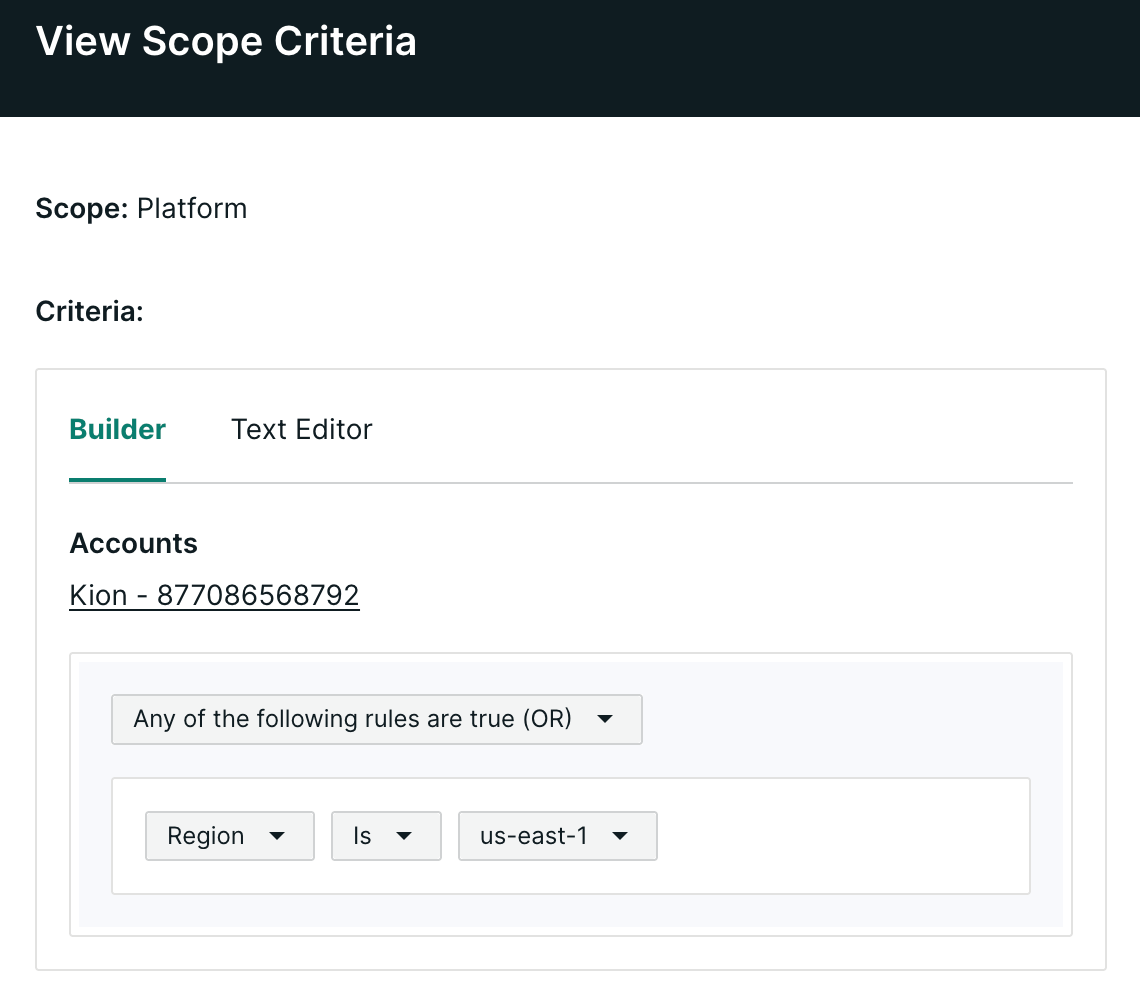
JSON Editor Example
Here is your JSON properly formatted and indented:
{
  "version": 1,
  "account_criteria": {
    "type": "account_ids",
    "account_ids": [
      "xxxx"
    ]
  },
  "conditions": {
    "condition_3egdzyfu5ut": {
      "field": "region",
      "type": "condition",
      "values": [
        "us-east-1"
      ],
      "operator": "is"
    }
  },
  "logic": {
    "type": "group",
    "operator": "or",
    "parts": [
      {
        "type": "condition",
        "condition_identifier": "condition_3egdzyfu5ut",
        "parts": []
      }
    ]
  }
}
Contains / Does Not Contain (Example)
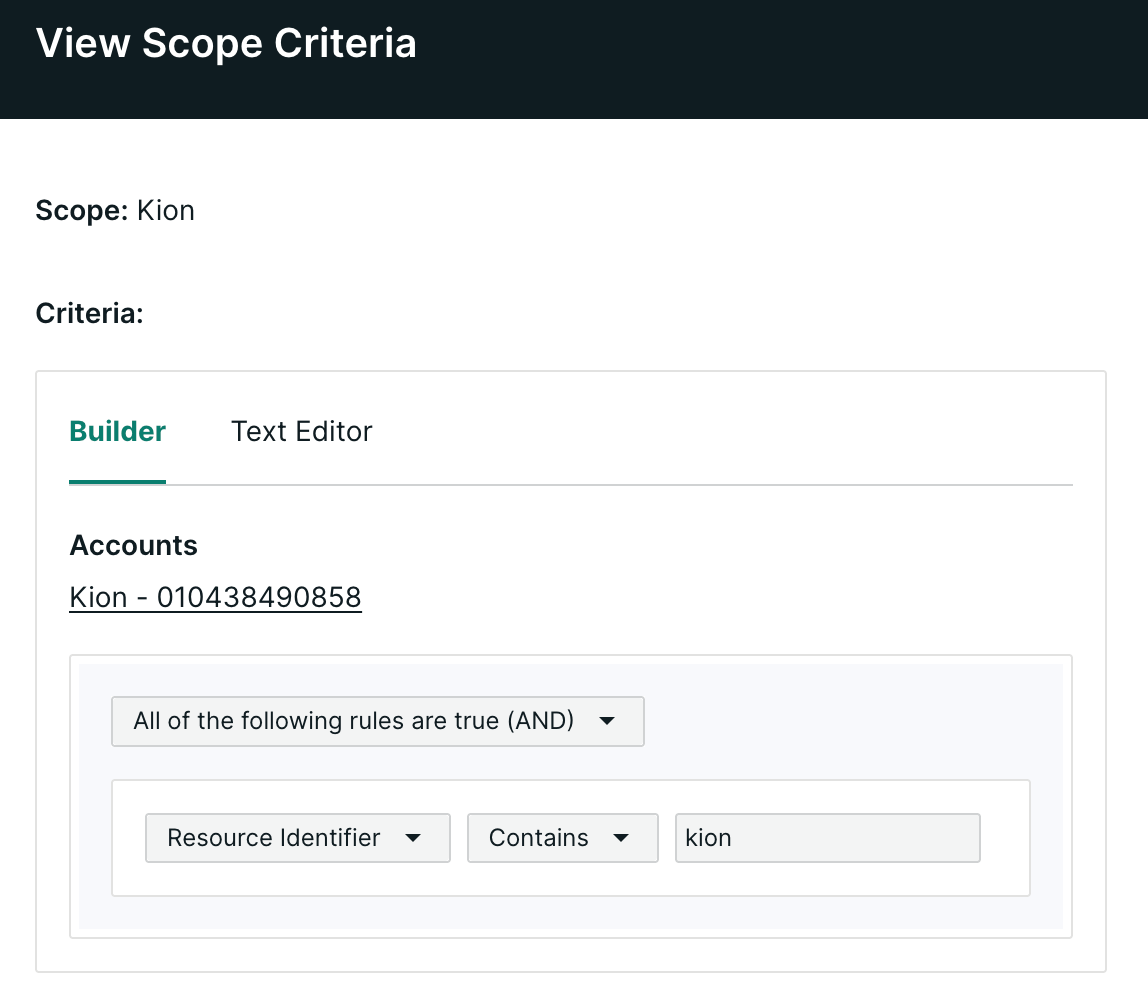
Contains-based matching is designed to capture resources or charges that have a similar naming pattern. For example, if it's desired to group all instances that contain the name "kion", the below image would group all those like instances into a single scope. Please note that Contains-based criteria is case sensitive, so "Kion" and "kion" would be two different criteria. In that example, two rules targeting both versions would capture all related spend.
Regex-Based Matching (Example)
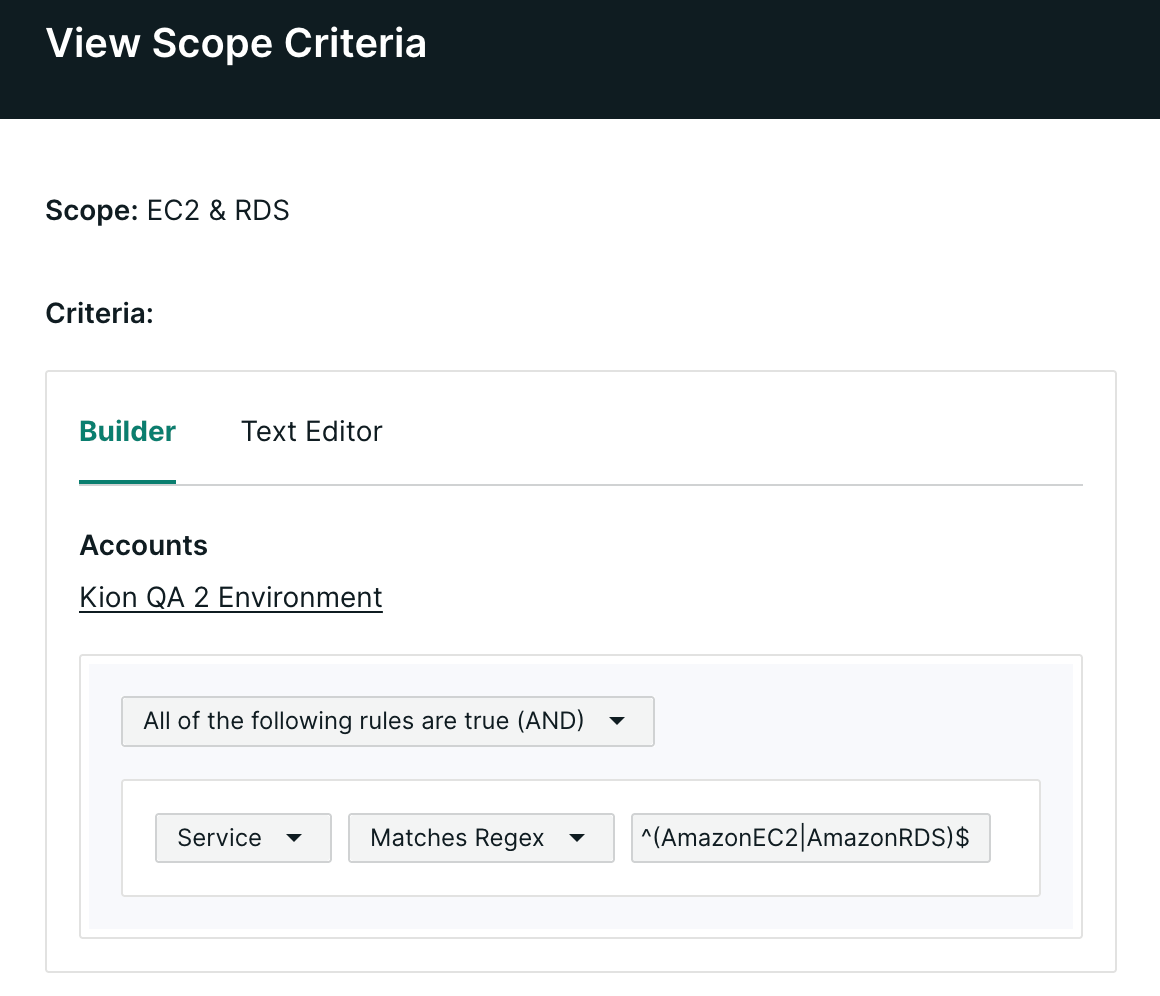
Regex matching is designed to capture specific or related resources based on naming patterns. To learn more about regex and the required syntax, please review here. This allows Scopes to dynamically include resources without relying on consistent tagging, naming, or grabbing very specific resources. In the below example, this regex is used to capture all EC2 and RDS related spend into a single scope.
Multiple Rules and Nested Logic
Multiple rules can be applied within a single Scope
Rules are evaluated together to determine included spend
This allows:
Nested ownership models
Multi-dimensional grouping (e.g., service + region + tag)
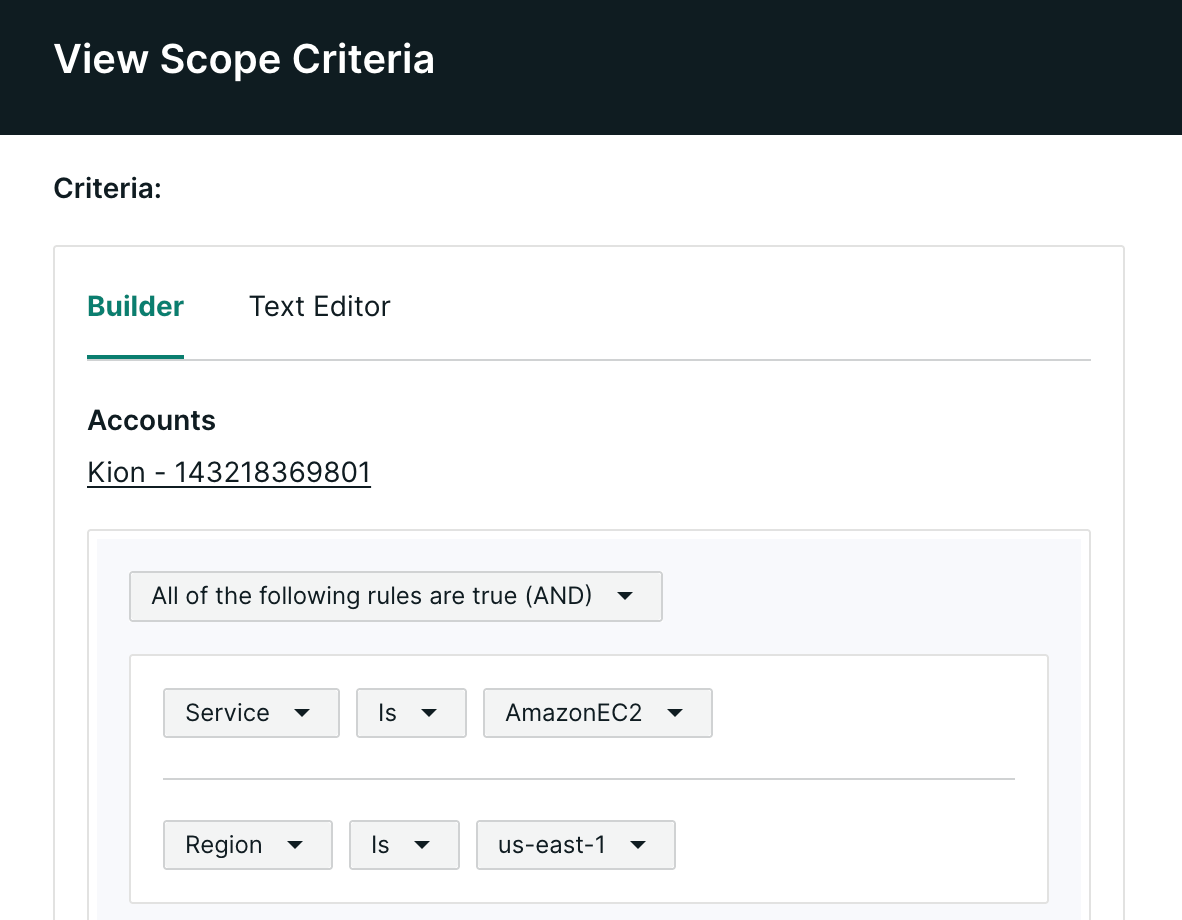
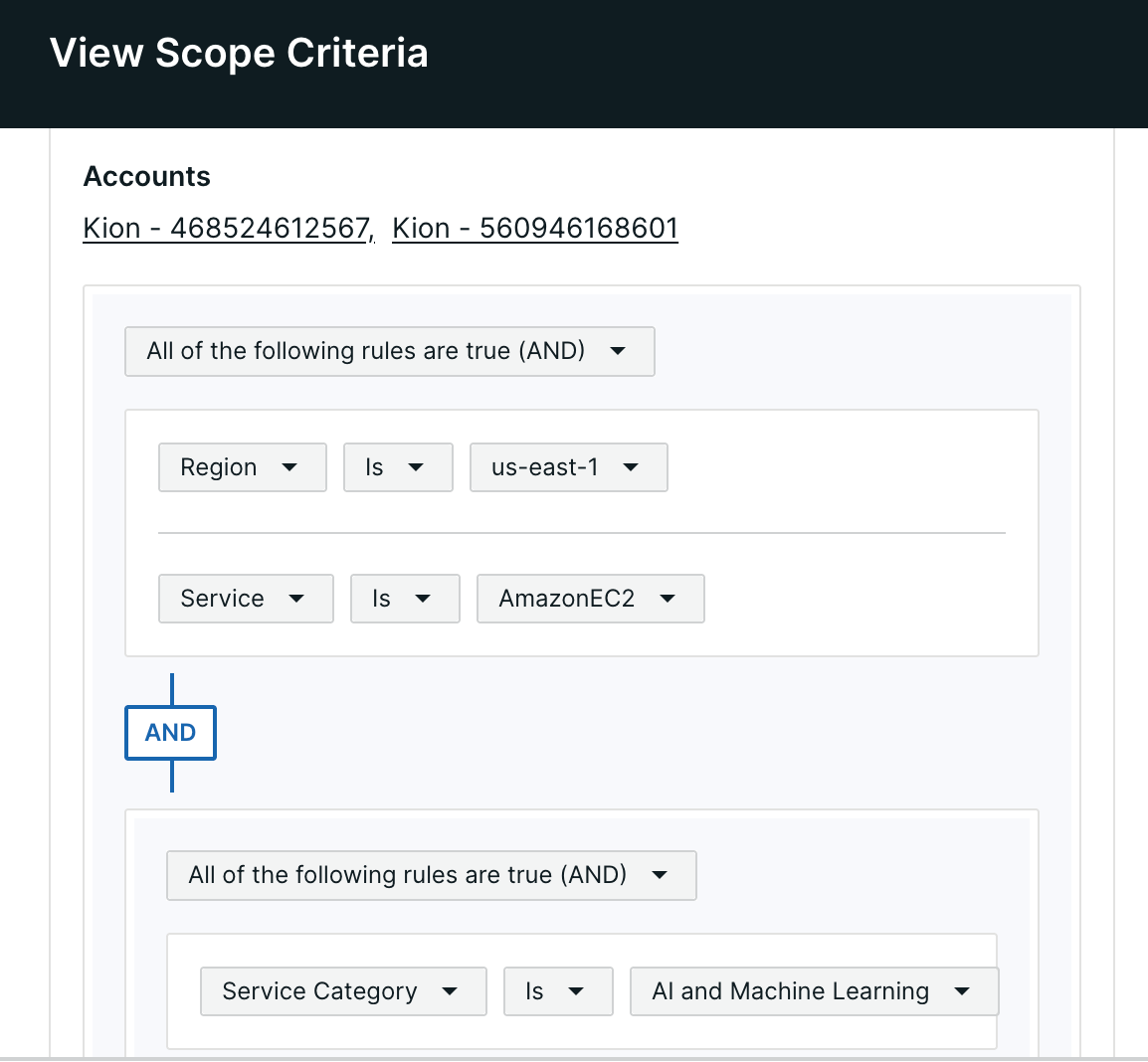
The rules can nested together by adding Groups as well, using AND or OR logic. Criteria can be nested up to 3 levels deep.
AND - In this example, the Scope will only include spend for EC2 spend running in the us-east-1 region.
OR - In this example, the Scope will include any EC2 spend and all spend associated with the us-east-1 region.
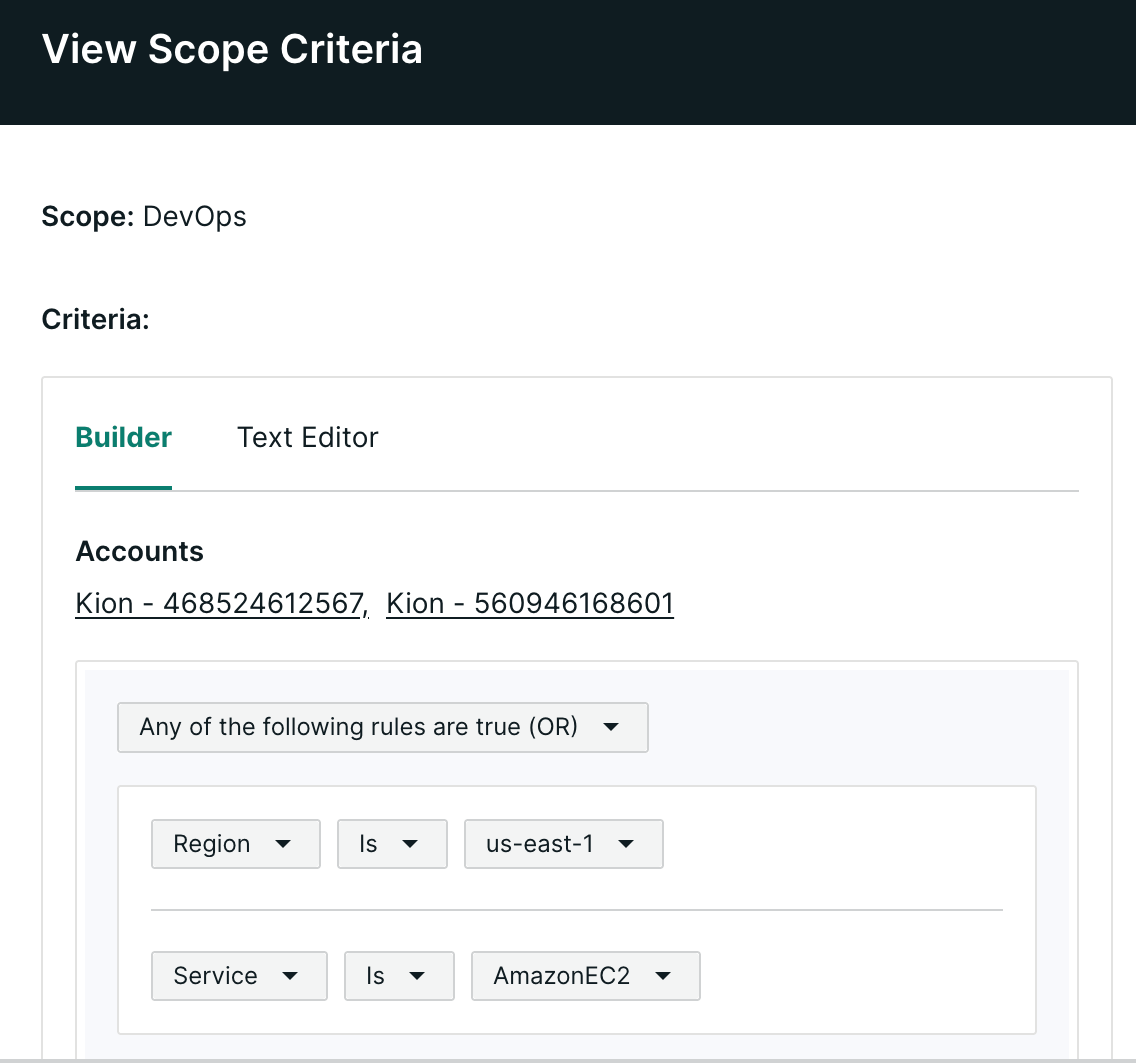
Nested Logic - For more complex criteria that requires multiple layers of ownership, uses can add an additional group In this example, the scope will include EC2 spend within the us-east-1 region, along with all AI and Machine Learning related spend.
Priority Ordering Between Scopes
When multiple Scopes target overlapping criteria:
Scopes are evaluated based on priority order, this means Scopes higher in the list will take priority over Scopes below.
Higher-priority Scopes capture spend first (if criteria is targeting the same set of spend)
Remaining spend is evaluated against lower-priority Scopes
Example - If two Scopes are targeting the same tag, "Owner:Kion", the Scope higher in the list will have that spend attributed to it.
To easily make changes, ssers can select the "Manage Scope Priority" button at the top of the Scopes List page. This will enable a state where priority can be adjusted by dragging and dropping to adjust the order.
Please note that any changes to priority order will kick off a Scopes reprocessing effort to account for any changes in spend.
After reordering, click Save Priority and choose the Start Month when the new priority order should begin, then click Save. The start month cannot be in the future or earlier than the first month any Scope was active. Choosing a start month in the past reprocesses historical data from that month, which can take several hours or even days, and spend and enforcements may change.
Segments
Starting in version 3.15.7, Scopes support segmented criteria updates. Instead of triggering a full reprocessing every time your account list or criteria changes, you can now apply changes starting from a specific month.
For example, if a new account joins your organization in April, you can add it to your Scope criteria starting in April. No reprocessing for the months before it existed, limiting the financial processing impact.
Viewing segments
Open any Scope and click the Segments tab. You'll see a full history of criteria changes there, and it's where you'll manage all segment activity, including adding new ones or editing existing ones.
Adding a new segment
Click Add New in the top right of the Segments tab.
Select the months you want the segment to cover.
Add, edit, or remove criteria as needed.
Acknowledge the potential impact to your Scope spend and click Save.
Editing an existing segment
Click the three-dot menu to the right of the segment you want to change.
Select the months and update criteria using the same steps as above.
To remove a segment, select Delete from the same menu. Only the earliest or latest segment can be deleted, and a Scope must keep at least one segment.
A few rules to know
Segments cannot overlap, and there can't be gaps between them. Kion handles both of these automatically:
Overlapping segments: If your edit overlaps with an existing segment, Kion will override the overlapping portion when you save.
Gaps: If your edit would create a gap in coverage, Kion will flag it and block the save until you resolve it.