Configuring Active Directory Federation Services
Last updated: September 9, 2026
To configure Kion to use Active Directory Federation Services (previously ADFS):
-
Navigate to Users > Identity Management Systems.
-
Click Add New.
-
For the IDMS Type, select SAML 2.0.
-
Fill in the required fields. For more information, see Add a SAML 2 IDMS.
-
Do not enable Should Sign AuthN Requests.
-
For the First Name, enter the field from the IDP that will be mapped to the user first name (
first_name). -
For the Last Name, enter the field from the IDP that will be mapped to the user last name (
last_name). -
For the Email, enter the field from the IDP that will be mapped to the user email (
email). -
For the Username field, enter the field from the IDP that will be mapped to the user username (
username). -
Click Create IDMS.
-
Download the Kion metadata and import it into ADFS. You can accept all of the defaults when going through the metadata import wizard.
-
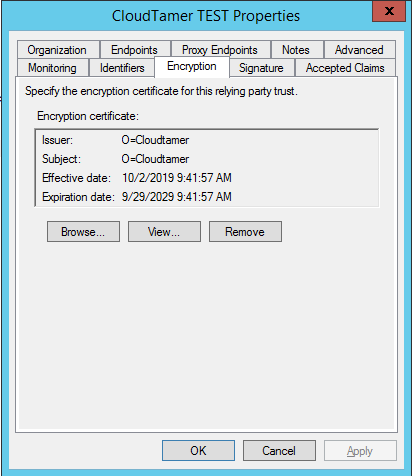
Open the relying party definition.
-
In the encryption tab, remove the certificate so that the response assertions are not encrypted.
-
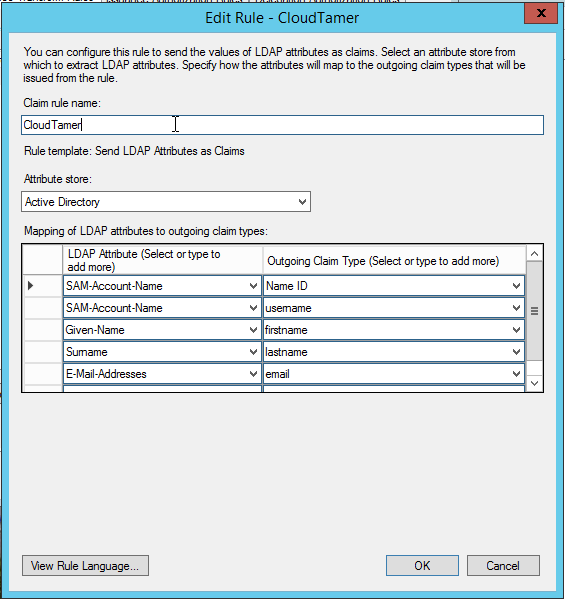
Create claim rules which describe what data ADFS will return to the relying party. There must be a name ID attribute. The other attributes must match what you named them when creating the IDM record inside the application.
- Log into the application via ADFS.