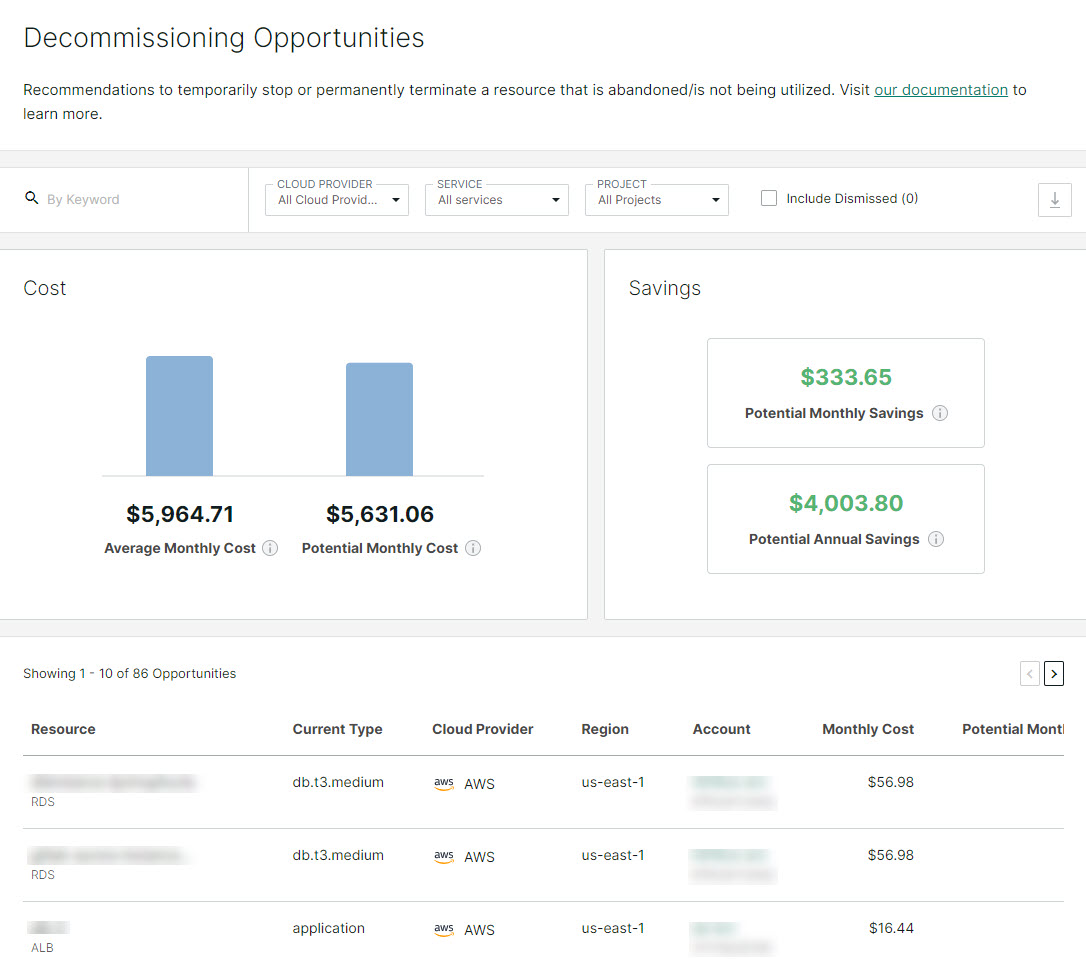
Decommissioning Opportunities
Last updated: October 22, 2026
Decommissioning opportunities are recommendations to temporarily stop or permanently terminate a resource that is not being utilized. For example, we might recommend that you stop or terminate a resource that hasn't been used in the last six months.
To see your decommissioning opportunities, navigate to Savings Opportunities, and click the Decommissioning Opportunities button next to the Savings chart.
Note: To adjust which decommissioning checks you would like to run regularly, navigate to System Settings > Application Settings > Savings Opportunities. For more information, see Savings Opportunities Settings.
Filtering and Exporting
You can filter the information on this page by entering a keyword or by using the dropdown menus to select a cloud provider, service, and/or project. Select Include Dismissed to include savings opportunities that have already been dismissed. Filters remain active when moving between savings opportunity pages.
Click the download button

to export the current view as a .csv. The export takes into account any filters you have in place, only including the information you choose.
Cost and Savings
The Cost chart compares the following:
The Average Monthly Cost for the resources we have identified with decommissioning opportunities. This includes all of the resources listed in the Opportunities list below. This is calculated by averaging the monthly spend across cloud providers for the last three months. You can hover over the information icon

to learn which months were used in this calculation.
The Potential Monthly Cost should you appropriately apply all of the recommendations.
The Savings chart shows the following:
The Potential Monthly Savings and Potential Annual Savings you would save by appropriately applying all of the recommendations.
Opportunities
This list shows each individual resource with a decommissioning opportunity.
An ellipsis menu appears on the right if you hover over a resource. This menu gives you the options to:
View details. Open a details panel with cost/savings information about the selected resource. From the panel you can copy a link to share, open the opportunity on its own page, log in to the account containing the resource (Cloud access, if you have sufficient permissions), and use the Actions menu.
Stop resource. Temporarily stop the resource, for decommissioning opportunities on resource types that support stopping. Like Terminate resource, this option only displays if it is enabled in System Settings > Application Settings > Savings Opportunities.
Terminate resource. Permanently terminate the resource (decommissioning opportunities only). This makes it easy to decommission a resource that is not being utilized. Use this option with caution, as terminating the wrong resources can disrupt services in your environment. This option only displays if it is enabled in System Settings > Application Settings > Savings Opportunities.
Mark as applied. Mark the savings opportunity as applied. Choose this option if you log into the account and apply the recommended change manually.
Dismiss. Mark the savings opportunity as dismissed, which indicates you do not wish to act on the recommendation at this time. Dismissed opportunities can be reviewed later by using the Include Dismissed option in the filter bar, and restored with Un-Dismiss.