Getting Started with Lux
Last updated: October 22, 2026
Enabling Lux
Navigate to Settings > System Settings > Application Settings > Lux AI Agent
Enable Lux by toggling “Allow Lux AI Agent” to On
Lux will not be functional until a provider has been setup in the next steps
Connect an AI provider
Supported providers and the corresponding models will be available for selection in the drop downs
Kion/Lux uses credentials you generate in your AI provider account. Create the credential in the provider, then paste it into the API Key field on the Lux AI Agent settings page in Kion. Below are steps for each of our supported providers:
Generate credentials for your AI provider:
Bedrock
Kion accesses Bedrock through the AWS service role automatically when selected in the Provider UI. No additional steps are required.
OpenAI
Sign in to the OpenAI API dashboard.
Go to the API keys page and create a new secret API key.
Copy the key once (you won’t be able to view the full secret again) and store it in your secrets manager.
In Kion, paste the key into the API Key field.
Reference: OpenAI’s API key creation guidance
Anthropic
Sign in to the Anthropic Console (API Console account).
In the Console, create an API key (often under Account Settings and/or within a Workspace).
Copy the key once and store it in your secrets manager.
In Kion, paste the key into the API Key field.
References: Anthropic getting-started
Configure model(s) to use and (optional) setup multiple models for different use cases
After connecting an AI provider, the available models will be made available in the Model Selection drop downs.
Kion offers Quick, Advanced, and General Chat models for organizations that may want flexibility or more economic usage. Depending on the task Lux is completing, it will rotate to utilize different models if there are multiple available to use.
Quick Model is for frequent or simple tasks. Kion recommends a model like Anthropic’s Claude 4.5 Haiku, as it’s cost efficient and still performant for simple tasks.
Advanced Model is for difficult tasks like creating cloud custodian policies. Kion recommends Anthropic Claude Haiku 4.5 for both advanced and quick tasks, but organizations can setup more advanced models (ex: Sonnet) for additional performance if desired.
General Chat - This model is for user prompts and queries, and organizations will select either the Quick or Advanced model for these types of tasks.
Organizations can choice to use a single model for tasks.
(Optional) Configure token usage restrictions for users
Toggle Enable Token Usage Limits on, then enter a Token Limit Per User, which is the total number of tokens each user can use in a given month. Usage resets on the first of the month.
Users with the “AI User Role” can begin interacting with Lux immediately from the Kion interface
No system restart or redeployment is required.
Restriction Options:
Lux can be restricted in the following ways:
Disabled - Kion Administrators can disable the use of Lux entirely for all users by turning off Allow Lux AI Agent on the Lux AI Agent settings page.
Permission Limited - Can be restricted per user by using the System Managed Role - “AI User”. Any users or user groups who need to be able to utilize Lux should be added to this role. Anyone without this permission will see the Lux button, but Lux will tell them it isn’t enabled for their account and they cannot interact with it.
Token Limited - Additionally, administrators can optionally set Token Usage Limits by:
Turning on Enable Token Usage Limits on the Lux AI Agent settings page in Kion
Define the Token Limit Per User, the total tokens each user can use per month
Because token usage depends on both prompts and responses, exact enforcement cannot be guaranteed. Limits are best-effort safeguards.
Restriction Example (illustrative only):
A Kion User submits a prompt around spend by service and receives the following response:
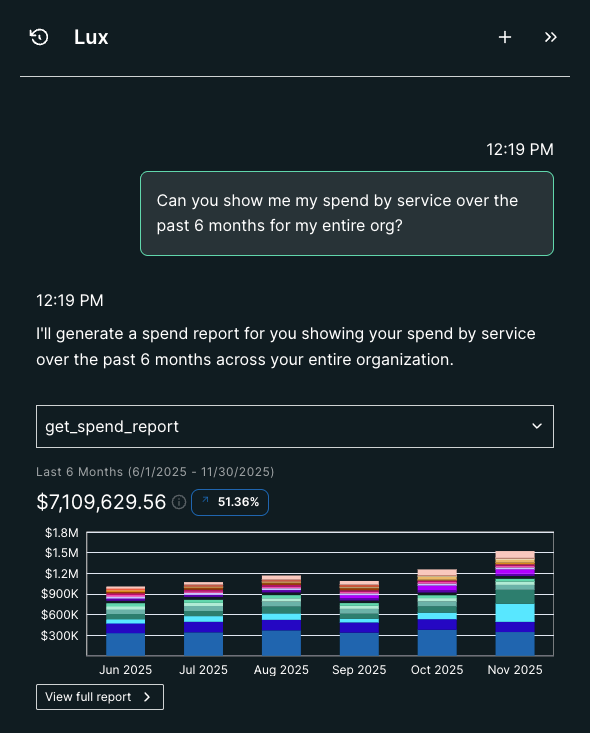
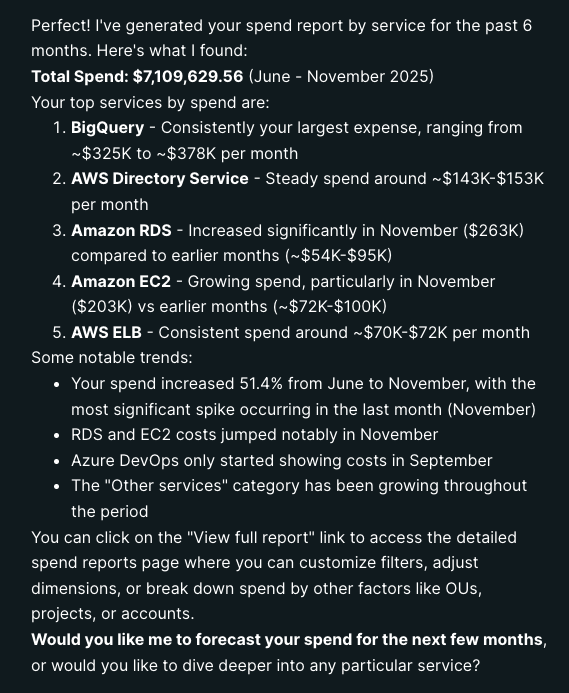
User Prompt = ~22 tokens
Tool Call + Graph = ~70 tokens
Lux Response = ~320 tokens
Meaning, this interaction was ~400-425 tokens. If a system setting was in place to limit token usage to ~1000/month, each user would be restricted to roughly two interactions like this in Lux per month.
This would result in fractions of a cent per user. Therefore, Kion recommends at minimum 10,000 tokens, which would only be ~$.04 per user/per month (using Claude Haiku 4.5 as the example model). Additional cost considerations below.
Cost Considerations
Lux usage costs are determined by:
The AI provider selected
The specific model used
The number of users interacting with Lux
The volume of tokens generated (prompts + responses)
Costs are billed directly by the provider and vary based on usage patterns.
Example (illustrative only):
Assuming the same prompt and response in the prior section
Provider / Model: Anthropic’s Claude Haiku 4.5
Total tokens generated: ~425
Total Cost for that Interaction: <1 cent (.17 of a cent)
Total cost for the day for 1000 users: $1.70/day
Permissions and Access
Adding users to the AI User role allows users to interact with Lux.
The actions Lux can take or information it can access is governed by the user’s existing Kion roles and permissions. This means users can only see or act on data they are already authorized to access.
Certain actions (if permitted) such as create, edit, or delete require explicit user approval before Lux will complete the action.
How Lux Works (At a High Level)
When a user submits a request, Lux determines:
Which internal APIs or tools are required
The safest and most appropriate way to fulfill the request
This selection happens automatically and transparently.
When a prompt and tool search results in an action the requires creating, editing, or deleting, Lux will:
Summarize what it is about to do
Present the summary to the user
Require the user to Approve or Deny the action
Some low-risk, read-only API calls may be allowed without approval. This ensures users remain in control at all times.
Context Length and Limits
Lux operates within a maximum context length (approximately 100,000–200,000 tokens per conversation, including user messages and model responses).
Users will receive a warning as they approach the limit
Once the limit is reached, users must start a new conversation to continue
This ensures consistent performance and reliability.
Back-Out and Failure Handling
Because Lux does not deploy infrastructure into your environment:
Disabling Lux simply involves removing access or disconnecting the AI provider
No customer-side cleanup is required
Incomplete or denied actions do not modify resources
If Lux encounters an error while processing a request, no changes are made unless explicitly approved and successfully completed.
Ongoing Administration
Administrators may periodically need to:
Update or rotate AI provider credentials
Adjust token usage limits
Review which users have access to Lux
Validate compliance policies generated or edited by Lux
Troubleshoot missing or delayed data by confirming underlying Kion data sources