Applying a Role Definition to a Cloud Access Role at the Project Level
Last updated: October 23, 2026
The easiest way to apply a role definition to one of your Azure subscriptions is to apply it to a cloud access role. You can do this either at the OU or project level.
To apply an Azure role definition to a new or existing cloud access role at the project level:
In the left navigation menu, click Projects > All Projects.
Click the name of the project where you will apply the role definition.
Go to the Identity tab.
Select the Cloud Access Roles subtab.
Click the Add button on the right side of the interface if you are creating a new cloud access role, or select the ellipses menu on an existing cloud access role and select Edit to add it to an existing cloud access role.
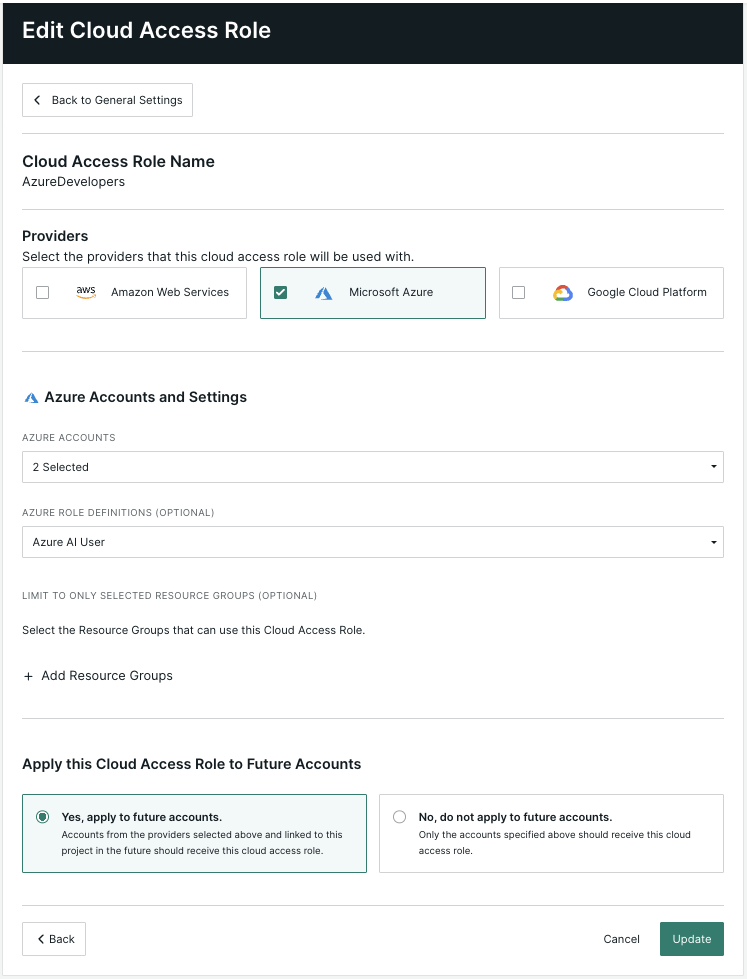
Fill out the cloud access role name and any other necessary fields, then click Continue. Under Providers, select Azure. In the Azure Accounts and Settings section, select the Azure accounts, then select Azure Role Definitions from the dropdown.
Click either the Update button or the Create Cloud Access Role button depending on whether you are editing or creating a cloud access role.
Done! Your Azure role definitions will apply to the Azure subscriptions selected for the cloud access role when you access the Azure portal using this role.